OBS is still the right tool for streaming studios. Screen Recorder Pro is for the everyday recording: a Google tab, a support repro, a course walkthrough, or a camera note saved straight to your disk.
The right choice depends on whether you need broadcast control or a clean recording in the next minute.
| Need | OBS Studio | Screen Recorder Pro |
|---|---|---|
| Fast screen capture | Requires app install, sources, and scene setup. | Open the extension popup, pick a source, click Record. |
| Record a browser tab | Possible with window capture, but setup is manual. | Tab mode is built in and captures tab audio directly. |
| Crop to one panel | Requires crop filters or custom canvas sizing. | Area mode draws a frame around the exact region. |
| Streaming | Best choice for RTMP, scenes, overlays, and cameras. | Not a livestreaming tool. |
| Free export branding | No automatic product branding. | Free exports include a short end-card. Pro removes it. |
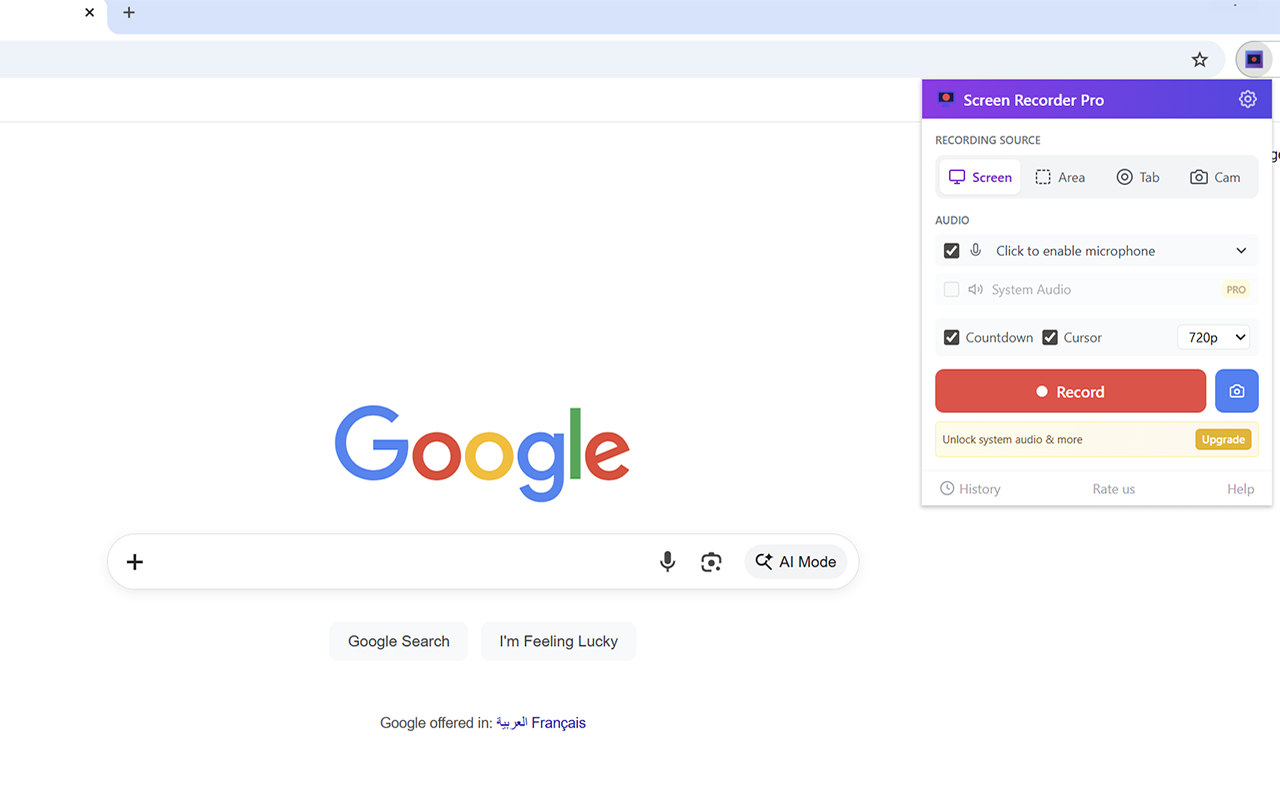
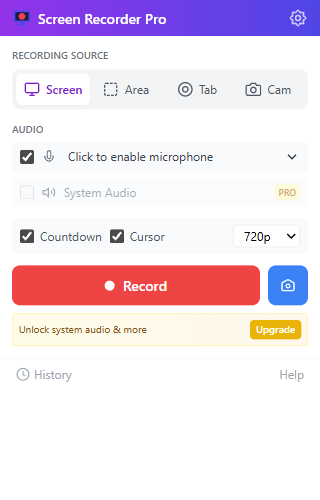
The controls shown here come from the actual extension popup: four source buttons, microphone and system audio toggles, countdown, cursor capture, quality selector, record, screenshot, and upgrade banner.
Use it when the content is a panel, form, spreadsheet, or browser section.
No need to crop out the desktop later.
Show the issue without exposing the rest of the screen.
The demo shows a Google-style document and checklist because that is the kind of content people actually record: support notes, product walkthroughs, classes, dashboards, and bug reports.
Free gives you 3 recordings per day with a short end-card. Pro removes the end-card and adds clean exports, system audio, MP4, GIF, transcripts, and higher limits.
